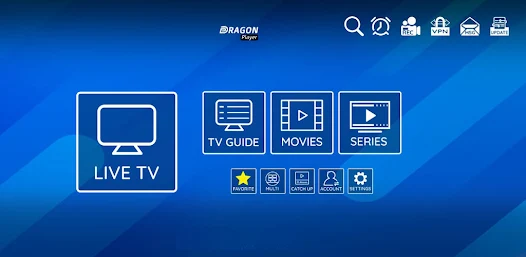
XCIPTV is one of the most popular IPTV applications for watching streaming TV on different devices. This free application offers a modern, intuitive interface that makes it easy to play back your favorite content. Whether you own a Smart TV, an Android box, or an Amazon Fire Stick, this comprehensive step-by-step guide will show you how to install and configure this streaming solution.
Xciptv stands out for its extensive compatibility and advanced features that meet the needs of demanding users. In this detailed tutorial, you'll discover all the installation methods available, configuration tips, and solutions to the most common problems. Get ready to transform your viewing experience with this powerful platform.
What is XCIPTV?
This modern IPTV application lets you stream Internet TV from your connected device. The free software solution gives you access to TV channels, movies and series directly via your equipment. The streamlined user interface makes it easy to navigate between the different content and categories available.
Xciptv supports the most common playlist formats, including M3U and M3U8 files. It also incorporates an electronic program guide (EPG) that displays detailed information on current and upcoming programs. The advanced search function lets you quickly locate the content you want from a vast multimedia library.
Compared with other IPTV players on the market, xciptv stands out for its stability and optimized performance. It consumes fewer system resources while offering superior playback quality. The developers offer regular updates that continually improve the user experience and correct any malfunctions.
Extensive compatibility is another major advantage of this platform. It works perfectly on Android systems, Fire OS, and some smart TVs. This versatility allows users to enjoy their favorite content on the device of their choice, whether in the living room, the bedroom, or on the move.
Pre-installation requirements
Before installation, please check that your Internet connection has sufficient bandwidth. A minimum speed of 10 Mbps is recommended for uninterrupted high-definition streaming. For 4K content, expect at least 25 Mbps of stable bandwidth.
Make sure your device meets the minimum technical requirements. Android devices must run version 5.0 or higher, while Fire Stick devices require Fire OS 5.0 or higher. Recent Samsung and LG smart TVs are generally compatible with Xciptv.
Legal and authorized content sources are essential. Use only M3U playlists from legitimate IPTV providers who respect copyright. Avoid dubious sources that may contain pirated content or malware.
You should also prepare sufficient storage space on your device. The application itself takes up around 50 MB, but may require additional space for cache and program metadata. Free up at least 200 MB of free space to ensure optimal operation.
How to install XCIPTV on Android TV
Installation via Google Play Store
The easiest way is to download xciptv directly from the Google Play Store. Switch on your Android TV and navigate to the Play Store icon on the home screen. Use the search function by typing the application name in the search bar.
Once you've located Xciptv in the results, select it to access its presentation page. Check that you're downloading the official version by checking the developer's name and user reviews. Click on the «Install» button to start the automatic download.
The installation process runs automatically in the background. You can follow the progress via the download bar that appears. Once installation is complete, Xciptv appears in your list of installed applications and on the home screen.
Installation via APK file
If the application is not available in your region on the Play Store, you can install it manually via the APK file. First download the installation file from the developer's official website or a reliable source such as APKMirror.
Before installing the APK file, activate the «Unknown sources» option in your Android TV's security settings. Navigate to Settings > Security & Restrictions > Unknown Sources, then enable this option to allow the installation of third-party applications.
Transfer the APK file to your Android TV via a USB stick or network file manager. Use a file explorer to locate the downloaded file, then select it to launch the installation. Follow the on-screen instructions to complete the process.
Initial configuration
On first launch, Xciptv guides you through a simplified configuration wizard. Accept the terms of use and grant the necessary permissions for storage and network access. These permissions enable the application to function properly and save your preferences.
The next step is to configure your content sources. You can add M3U playlists either by entering a direct URL or by importing a local file. For a first configuration, test with a demo playlist to see how it works.
Then customize the interface according to your preferences. Choose the visual theme, channel layout and display options. You can also set parental controls if necessary, by defining a PIN code to protect certain content.
Installation on Amazon Fire TV Stick
Downloader method
Installation on Fire Stick requires the use of the Downloader application, available free of charge from the Amazon Appstore. Find and install Downloader on your Fire Stick if you haven't already done so. This application lets you download APK files from the Internet.
Before proceeding, activate the installation of applications from unknown sources in the settings. Go to Settings > My Fire TV > Developer Options, then activate «Applications from unknown sources». This step is essential for installing third-party applications.
Launch the Downloader application and enter the APK file download URL in the address bar. Be sure to use a reliable, official source to avoid modified or malicious versions. The download starts automatically once the URL has been validated.
Sideloading de xciptv
Once the APK file has been downloaded, Downloader automatically offers to launch the installation. Accept this proposal by clicking on «Install» in the window that appears. The installation process usually takes a few seconds, depending on the size of the file.
After successful installation, you can choose to delete the downloaded APK file to free up storage space. The newly installed application appears in the «My applications and channels» section of the Fire TV interface.
For faster access, you can move the application to the favorite applications row on your home screen. Hold down the selection on the application icon and choose «Move» to reposition it according to your preferences.
Basic settings
The first launch on Fire Stick follows a similar procedure to other platforms. The application automatically detects the characteristics of your device and adapts its settings accordingly. Grant the necessary permissions for storage and network access.
Set the video output resolution according to your TV's capabilities. Recent Fire Stick models support 4K, but you can adjust this value to optimize performance according to your Internet connection. The right resolution ensures smooth playback without excessive buffering.
Test the configuration by launching a demo channel or content. Check that audio and video are working properly, and adjust settings if necessary. You can also configure the Fire TV remote to control playback, pause and navigation within the application.
Installation on Samsung and LG Smart TVs
Samsung Smart TV (Tizen)
Recent Samsung TVs running Tizen do not natively support the installation of Android applications. However, you can use the casting function from an Android mobile device or tablet to project content onto your Samsung Smart TV.
First install the app on your Android smartphone or tablet following the standard procedure. Make sure your Samsung Smart TV and your mobile device are connected to the same home Wi-Fi network. This is essential to establish the broadcast connection.
Launch the app on your mobile device, then use the built-in streaming function or an app like AllCast to project the screen onto your TV. Some recent Samsung models also support AirPlay, which enables streaming from Apple devices.
LG Smart TV (WebOS)
LG WebOS TVs have similar limitations when it comes to direct installation of Android applications. The recommended solution is to use an external Android TV box connected to your LG Smart TV via an HDMI port.
Alternatively, you can take advantage of your LG Smart TV's streaming capabilities. Integrated Miracast technology enables you to receive content from a compatible Android device. Activate this function in the network settings of your LG TV.
For the best possible experience, consider purchasing a Chromecast or dedicated Android TV box. These external solutions offer full compatibility with the application and enable you to enjoy all its features on the big screen.
Smart TV alternatives
If your Smart TV doesn't support any of the above methods, you have several alternatives. Buying an Android TV box is the most cost-effective way to turn any TV set into an advanced streaming platform.
HDMI sticks like the Chromecast with Google TV, the Amazon Fire TV Stick, or the Mi TV Stick offer a compact, affordable solution. These devices connect directly to your TV's HDMI port, enabling full application installation.
You can also use a laptop connected to your TV via an HDMI cable. This allows you to install the application on an Android emulator such as BlueStacks, and enjoy content on the big screen in optimum quality.
XCIPTV configuration and settings
Add an M3U playlist
Configuring your content sources is the most important step after installation. The application supports several methods for adding M3U playlists to your media library. You can import local files stored on your device or use remote URLs.
To add a playlist via URL, access the settings menu and select «Add playlist». Enter the full address provided by your legal IPTV provider in the URL field. Give your playlist a descriptive name for easy identification if you use more than one.
Local files are imported via the integrated file explorer. Navigate to the location of your M3U file, select it, then confirm the import. The application automatically analyzes the content and organizes the channels into categories according to the available metadata.
| Addition method | Benefits | Disadvantages |
|---|---|---|
| Remote URL | Automatic updates, no local storage | Requires a permanent Internet connection |
| Local file | Works offline, total control | Manual updates required |
| Manual input | Maximum flexibility | A long and tedious process |
Video parameter settings
Optimizing video settings significantly improves your viewing experience. Access playback settings to adjust output resolution according to the capabilities of your device and Internet connection. If your bandwidth is limited, a resolution that is too high may cause clipping.
The video cache determines the amount of content buffered before playback starts. Increase this value if you encounter frequent interruptions, but bear in mind that too much cache can slow down channel start-up.
Configure the audio options to suit your installation. If you have a surround sound system, enable digital audio pass-through for optimum sound quality. For standard stereo configurations, the default settings are perfectly adequate.
Interface customization
The user interface can be customized to suit your personal preferences. Choose from the various themes available to adapt the visual appearance to your tastes. Dark themes consume less energy on OLED screens and reduce eye fatigue during prolonged viewing sessions.
Organize your favorite channels by creating personalized lists or marking them as favorites. This feature makes it easy to quickly access your most-watched content without having to browse the entire library. You can also hide categories that don't interest you.
Configure the information displayed in the program guide to suit your needs. You can choose to display full descriptions, broadcast times, or information on actors and directors. This metadata enriches your viewing experience by providing relevant details about each program.
Solving common problems
Connection problems
If Xciptv is unable to load your playlists, first check the stability of your Internet connection. Run a speed test to make sure your bandwidth meets minimum requirements.
Also check the validity of your playlist URLs. IPTV providers sometimes modify their servers, rendering old addresses obsolete. Contact your provider for updated URLs if the links no longer work.
Firewall or router settings may block some IPTV connections. Check that the necessary ports are open and that your network equipment is not blocking streaming traffic. Some ISPs apply restrictions on IPTV traffic that may affect performance.
Reading errors
Playback errors usually manifest themselves as black screens, error messages, or unwanted pauses in playback. These problems often stem from a mismatch between decoding parameters and video stream characteristics.
Try changing the video decoder in the application settings. Switch from hardware to software decoding, or vice versa, depending on your device's capabilities. Older devices may work better with software decoding, while newer models benefit from hardware decoding.
Reduce playback resolution if you encounter performance problems. A lower resolution consumes fewer system resources and can resolve problems such as jerky playback or image freeze. You can always increase quality at a later date once the problems have been resolved.
xciptv update
Always keep your application up-to-date to benefit from the latest bug fixes and performance improvements. Outdated versions may be incompatible with new streaming formats or IPTV server updates.
If you've installed the application via the Google Play Store, updates are performed automatically according to your settings. Check regularly for new versions in the «My apps» section of the Play Store.
For manual installations via APK, keep an eye on the developer's announcements on the official website. Download and install new versions manually, following the same procedure as the initial installation. Save your settings before updating to avoid losing your configuration.
Alternatives to xciptv
Several other IPTV applications offer similar functionality, but with different approaches. Kodi represents a complete solution that requires the installation of specific extensions for IPTV playback. This open source platform offers extensive customization but requires more technical knowledge.
VLC Media Player is a free, widely compatible alternative that plays IPTV streams via M3U playlists. Although less specialized in IPTV, VLC offers recognized stability and supports a wide range of video formats. Its interface may, however, appear less intuitive for channel navigation.
Perfect Player is a solution for experienced users looking for advanced customization options. This pay-per-use application offers professional features such as recording scheduling and management of multiple EPGs simultaneously.
TiviMate offers a modern interface optimized for large screens and remote controls. This pay-as-you-go application stands out for its time-shifting and cloud recording features. It does, however, require a subscription to access all advanced features.
Tips for optimizing your IPTV experience
To improve streaming quality, you need to optimize your home network. Use a wired Ethernet connection rather than Wi-Fi whenever possible, as it offers more stable bandwidth and reduced latency. If you must use Wi-Fi, position your device close to the router.
Configure your router's Quality of Service (QoS) settings to prioritize streaming traffic. This feature reserves a portion of your bandwidth for video applications, ensuring a smooth viewing experience even when other devices are using the Internet simultaneously.
Avoid using free VPNs, which can significantly slow down your connection. If you must use a VPN for privacy reasons, choose a premium service with servers optimized for streaming. Select a geographically close server to minimize latency.
Schedule your application downloads and updates outside your main viewing hours. These activities consume bandwidth and can affect the quality of your IPTV streaming. Schedule them during off-peak hours to maintain optimal performance.
Frequently asked questions (FAQ)
Is Xciptv free? Yes, the basic application is completely free and requires no subscription. However, you must have a legal IPTV subscription from an authorized provider to access the content. The application serves only as a player for your legitimate content sources.
Can I use xciptv without an Internet connection? No, the application requires an active Internet connection to function, as it streams content online. Even with local playlists, most streams point to remote servers that require permanent Internet access.
How to solve buffering problems? Buffering problems are usually caused by insufficient bandwidth. Check your Internet speed, close other bandwidth-hungry applications, and reduce video quality if necessary. You can also increase the cache size in the application settings.
Does Xciptv work on iOS? No, this application is designed exclusively for Android and Fire OS devices. iPhone and iPad users should turn to iOS-compatible alternatives available from the App Store, such as GSE Smart IPTV or IPTV Smarters Pro.
How do I add multiple playlists? The application supports the addition of multiple content sources simultaneously. Use the «Add playlist» function as many times as necessary in the settings. Each playlist will appear as a separate source in the main menu, making it easy to switch between different providers.
Is it possible to record programs? The recording function is not natively integrated into the application. This feature depends on your IPTV provider and its services. Some providers offer catch-up TV options, enabling you to watch recently broadcast programs again.
How do I configure Parental Control? Access security settings to activate parental control. Set a PIN code known only to you, then select the categories or channels to be protected. Protected content will require PIN entry before access.
Why don't some channels work? Non-functional channels may be the result of several factors: servers temporarily unavailable, expired links, or geographical restrictions. Contact your IPTV provider to report malfunctions or obtain replacement links.
Conclusion
Installing Xciptv on your devices opens up a world of possibilities for your home entertainment. Thanks to this comprehensive guide, you now have all the knowledge you need to install, configure and optimize your streaming experience on different platforms.
Remember that the quality of your experience depends largely on the reliability of your IPTV provider and the stability of your Internet connection. Always choose legal and authorized sources to avoid legal and technical problems.
Xciptv continues to evolve with regular updates that improve performance and add new features. Stay tuned for new releases to take full advantage of this versatile, high-performance streaming solution.