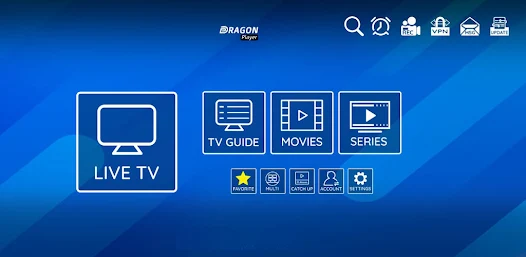
XCIPTV is a popular streaming application that brings thousands of live and on-demand TV channels to your TV. This flexible solution offers an attractive alternative to traditional cable or satellite subscriptions. In this article, we'll take you step-by-step through installing and configuring XCIPTV on different types of TV and connected devices.
What is XCIPTV and why install it on your TV?
XCIPTV is an IPTV (Internet Protocol Television) streaming application that turns your ordinary TV set into a complete entertainment platform. The application lets you access a vast catalog of international TV channels, movies and series via an Internet connection.
XCIPTV's main features
The application stands out for its many features:
- Access to thousands of TV channels from around the world
- Intuitive, customizable user interface
- High-definition (HD) and ultra-high-definition (4K) support
- Electronic Program Guide (EPG)
- Record and replay function
- Compatible with several playlist formats (M3U, M3U+, XMLTV)
- Multi-screen support for watching multiple channels simultaneously
XCIPTV-compatible devices
This solution is compatible with a wide range of devices:
| Device type | Compatibility |
|---|---|
| Smart TV Android | Excellent |
| Samsung Smart TV (Tizen OS) | Good (via third-party applications) |
| LG Smart TV (WebOS) | Good (via third-party applications) |
| Fire TV Stick | Excellent |
| Nvidia Shield | Excellent |
| Generic Android TV box | Excellent |
| Apple TV | Limited (alternative methods required) |
Prerequisites for installing XCIPTV on your TV set
Before you begin installation, make sure you have everything you need for an optimal experience.
Materials required for installation
To install and use XCIPTV correctly, you'll need :
- A compatible Smart TV or a standard TV with an external box connected
- A stable Internet connection (minimum 10 Mbps, ideally 25+ Mbps for HD)
- A Google account to access the Play Store (for Android devices)
- Sufficient storage space on your device (minimum 100 MB)
- A functional remote control or a smartphone remote control application
Subscription and service access
The XCIPTV application is free, but to access content, you'll need :
- Subscription to an IPTV service (M3U list provider)
- Get an M3U URL or playlist file from your supplier
- Possibly an EPG (Electronic Program Guide) file for program information
Complete Smart TV installation guide
XCIPTV installation varies according to your TV's operating system. Follow the instructions for your particular model.
Installation on Android TVs
Android TV sets offer the simplest installation method:
- Access the Google Play Store on your Android TV
- Search for «XCIPTV» in the search bar
- Select the XCIPTV Player application in the results list
- Click on «Install» and wait for the download to complete.
- Once installation is complete, open the
- On first launch, accept the terms of use
- You will be prompted to configure your channel list (see the Configuration section).
If the application is not available on your TV's Play Store, you can use the APK file installation method:
- On a computer, download the application's APK file from a reliable site
- Transfer this file to a USB key
- Connect the USB key to your TV
- Use a file explorer on your TV to locate and install the APK file.
- Activate the «Unknown sources» option in the security settings.
How to install on Samsung Smart TV
Samsung TVs use the Tizen operating system, which does not directly support XCIPTV. Here's how to proceed:
- On your Samsung Smart TV, access the Samsung App Store
- Search for and install the «Smart IPTV» or «SS IPTV» application (compatible alternatives)
- Once installed, launch the application
- Note the MAC address displayed on the screen
- On a PC, visit the application provider's website (Smart IPTV or SS IPTV)
- Register your MAC address and download your M3U list
- Restart the application on your TV to access content
Alternatively, you can use an external device such as a Fire TV Stick or an Android box connected to your Samsung TV.
Installation method for LG Smart TV
LG TVs run on WebOS which, like Tizen, does not directly support this application:
- On your LG Smart TV, access the LG Content Store
- Search for and install «Smart IPTV» or a similar application
- Follow the same registration procedure as for Samsung TVs
- Enter your IPTV subscription information in the application
As with Samsung TVs, using an external device remains the most reliable method of accessing XCIPTV on LG TVs.
Installation via external boxes
External boxes often offer the best experience for using this application, whatever the brand of your TV set.
Configuration on Fire TV Stick
Amazon's Fire TV Stick is one of the most popular options for installing XCIPTV :
- Switch on your Fire TV Stick and access the home page
- Go to «Settings» > «Device» > «Developer» and activate «Applications from unknown sources».»
- Install the Downloader application from the Amazon App Store
- Open Downloader and enter the APK file download URL
- Once downloaded, follow the instructions to install the application
- Launch XCIPTV and configure your channel list
Installation on Nvidia Shield and other Android TV boxes
The Nvidia Shield and other Android TV boxes are easy to install:
- Access the Google Play Store on your device
- Search for «XCIPTV» and install the application
- If the application is not available, activate «Unknown sources» in the settings.
- Use an application such as Downloader or ES File Explorer to install the APK file.
- Configure the application with your subscription information
Using the application with Apple TV
Apple TV does not natively support this solution, but there are alternatives:
- Install an application like «GSE Smart IPTV» from the App Store
- Configure this application with your M3U playlists
- For a more XCIPTV-like experience, you can use AirPlay from an iOS device with the app installed.
Configuration and settings after installation
Once XCIPTV has been installed, it's essential to configure it correctly to take full advantage of its features.
How to add channel lists
To add your channel list to the application :
- Launch XCIPTV on your device
- Go to Settings«
- Select «Add playlist».«
- Choose the addition method :
- URL (enter the M3U URL provided by your supplier)
- Local file (if you've downloaded the list to your device)
- QR code (scan the QR code provided by your supplier)
- Give your list a name for easy retrieval
- If you have an EPG file, add it too in the dedicated section.
- Confirm and wait for the application to synchronize the data
Optimized settings for a better experience
To improve your XCIPTV experience, adjust these settings:
- Video resolution: adapt to your Internet connection and TV capacity
- Buffer: increase buffer size if you are experiencing fluidity problems
- User interface: customize the display of channels and categories
- Automatic update: activate this option to keep your lists up to date.
- Decoder mode: choose between hardware or software decoders, depending on your device's performance.
Solving common problems
Despite its ease of use, this application can sometimes present a few difficulties. Here's how to solve them.
Solutions to connection errors
If you have problems connecting to XCIPTV :
- Check your Internet connection (test other applications)
- Make sure your M3U list URL is correct and up-to-date
- Restart the application
- Check that your IPTV subscription is still active
- Try reinstalling the application if problems persist
- Contact your IPTV provider if the problem concerns only certain channels.
What to do in the event of buffering or slow streaming
Buffering is a common problem that can be solved using these methods:
- Improve your Internet connection (switch to wired rather than Wi-Fi if possible)
- Reduce streaming quality in settings
- Close other bandwidth-hungry applications
- Increase buffer size in advanced settings
- Use a VPN if your ISP limits IPTV traffic
- Try to look at off-peak times when servers are less busy.
Alternatives to XCIPTV for your TV set
XCIPTV is not the only option for enjoying IPTV on your TV.
Comparison with other IPTV applications
Here's how this solution compares to other popular applications:
| Application | Highlights | Weak points | Compatibility |
|---|---|---|---|
| XCIPTV | Intuitive interface, numerous functions | Complex configuration | Android TV, Fire TV |
| TiviMate | Elegant interface, advanced EPG | Limited free version | Android TV, Fire TV |
| Perfect Player | Lightweight, stable | Less modern interface | Android TV, Fire TV |
| GSE Smart IPTV | Available on iOS/Apple TV | Fewer functions | Apple TV, iOS, Android |
| Smart IPTV | Samsung/LG compatible | Requires a one-off payment | Samsung TV, LG TV |
Conclusion
Installing XCIPTV on your TV gives you access to a world of audiovisual content without the constraints of traditional cable subscriptions. Whether you're using an Android, Samsung or LG TV, or an external box like Fire TV Stick, the steps described in this guide will enable you to take full advantage of this application.
For an optimal experience, don't forget the importance of a stable internet connection and a reliable IPTV subscription. Once properly configured, XCIPTV will transform your TV experience with thousands of channels at your fingertips.
FAQ about XCIPTV
Is the application legal?
XCIPTV is a legal application that functions as a content player. However, access to certain content via IPTV subscriptions may be subject to legal restrictions depending on your country. Make sure you comply with the legislation in force in your region.
Do I have to pay to use XCIPTV?
The application itself is free. However, to access the channels, you need a subscription to an IPTV service, which is usually subject to a fee.
What connection speed do I need?
For smooth streaming in standard quality, a 10 Mbps connection is sufficient. For HD, expect at least 25 Mbps, and for 4K, a connection of 50 Mbps or more is recommended.
How do I get this application to work on a non-connected TV?
To use XCIPTV on a non-connected TV, you need an external device such as a Fire TV Stick, an Android TV box or a Chromecast with Google TV.
Can I use the application on several TV sets with a single subscription?
This depends on the terms and conditions of your IPTV provider. Some subscriptions allow simultaneous use on multiple devices, while others restrict access to a single screen at a time.
How do I update XCIPTV?
On Android devices, updates are performed automatically via the Play Store. For manual installations via APK, you'll need to download and install the new version manually.
Does the application work with all IPTV list formats?
XCIPTV supports the most common list formats, including M3U, M3U+, and XMLTV for program guides.